
How it works
From purchase to a 15-minute admin session
A typical rollout: buy seats, invite your team, deploy the Mac app with your MDM, then let staff request admin only when they need it.
1. Buy the Team pack
Checkout starts with Silicon Guardian 10 Seats — £100 a year. The store asks you to create an account and enter a company name; that becomes your organisation, and the purchasing account is the organisation admin. Seats are added to your pool when the order is paid (Processing or Completed).
2. Invite your colleagues
In My Account › Silicon Guardian › Users, add an email address. The person receives a single-use link that expires after 72 hours (the default). They choose a password of at least 12 characters and must enrol a TOTP authenticator app. Until both steps are done, they cannot sign in to the Mac app.
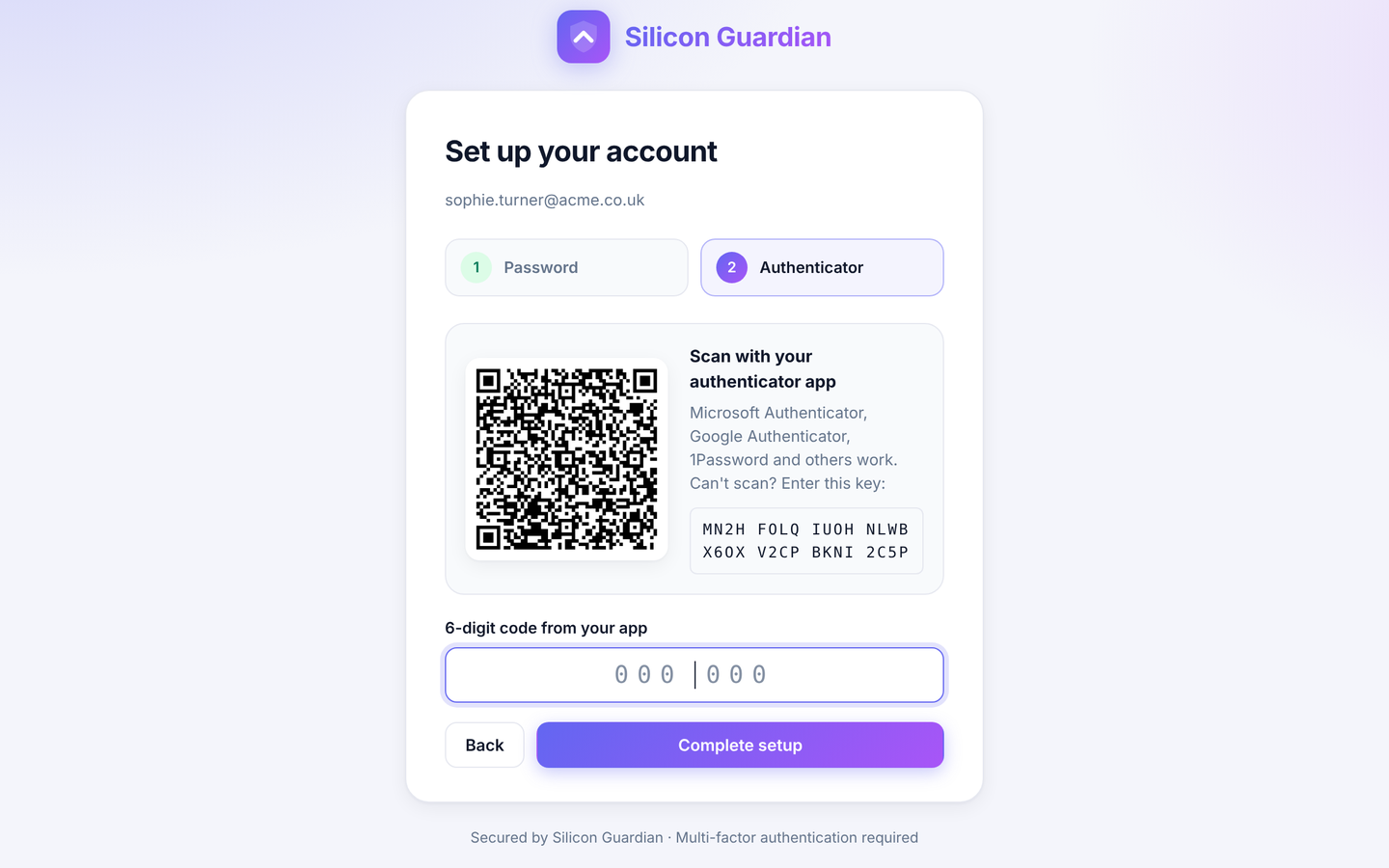
3. Deploy the app with Intune, Jamf or Kandji
Push a configuration profile first, so the privileged helper is allowed to run as a background login item, then deploy the installer package. Users should already be standard accounts — use your MDM to demote existing local admins and keep a separate break-glass administrator. After purchase, the package and MDM guides are available from My Account. See the download and docs page for the order of operations.
4. Register each Mac
The user opens Silicon Guardian from the menu bar and signs in with email, password and a six-digit authenticator code. The Mac is associated with that user (hardware UUID, serial, hostname, model, macOS version) and uses one seat. The server returns a device secret, short-lived access tokens, and an Ed25519-signed licence lease that remains valid for seven days.
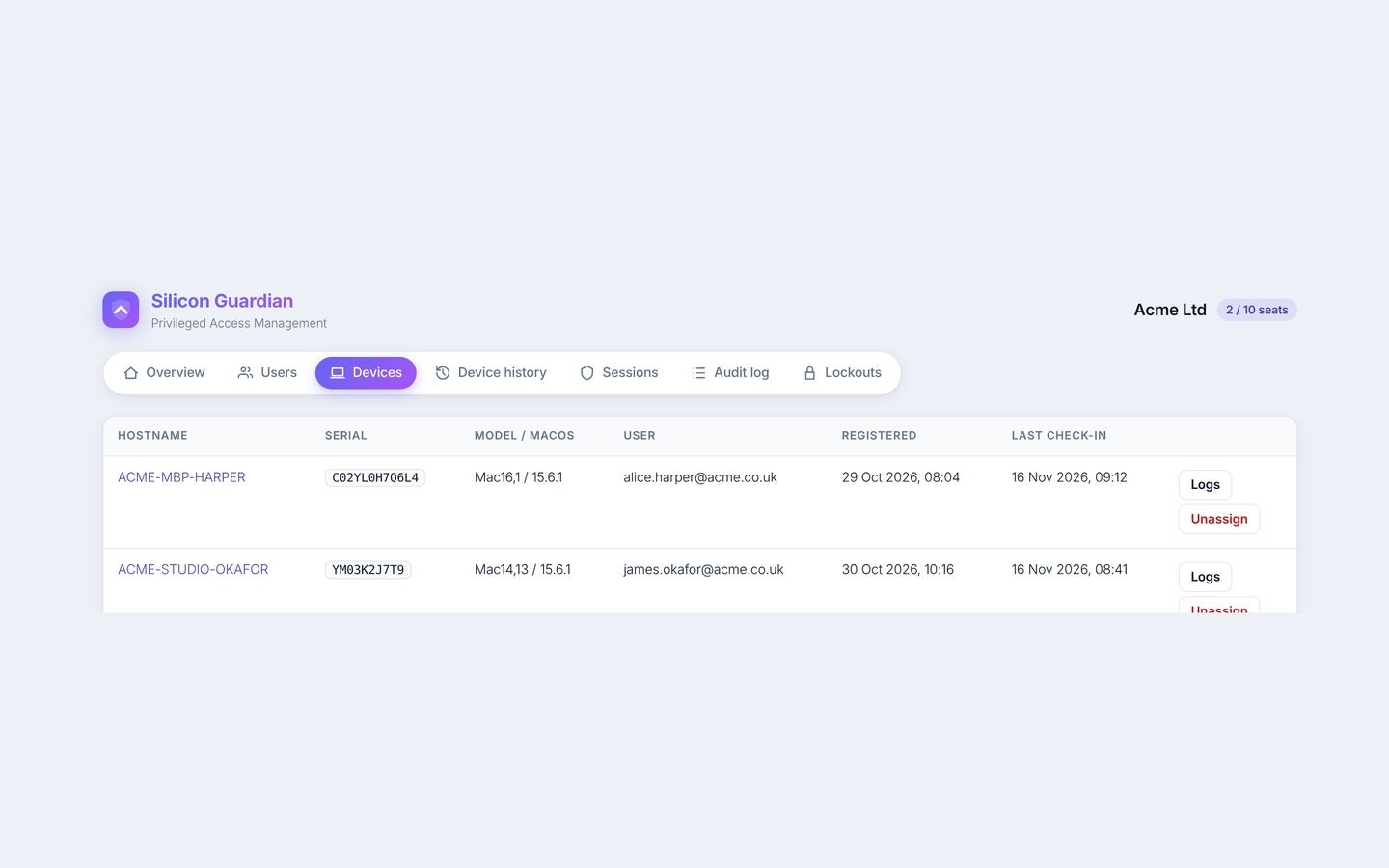
5. Request admin when it is needed
To elevate, the user unlocks with Touch ID, Apple Watch or their Mac login password, then requests a session. Silicon Guardian creates a hidden temporary admin account (a name starting with sgtmp_) and shows the username, password and a countdown in the menu bar. The signed-in user’s own account is never promoted.
When the 15 minutes are up, or when the user ends the session, the helper stops the temporary account’s processes, removes it from groups, and deletes the account and its home folder. A five-minute cooldown follows before another session can be requested.
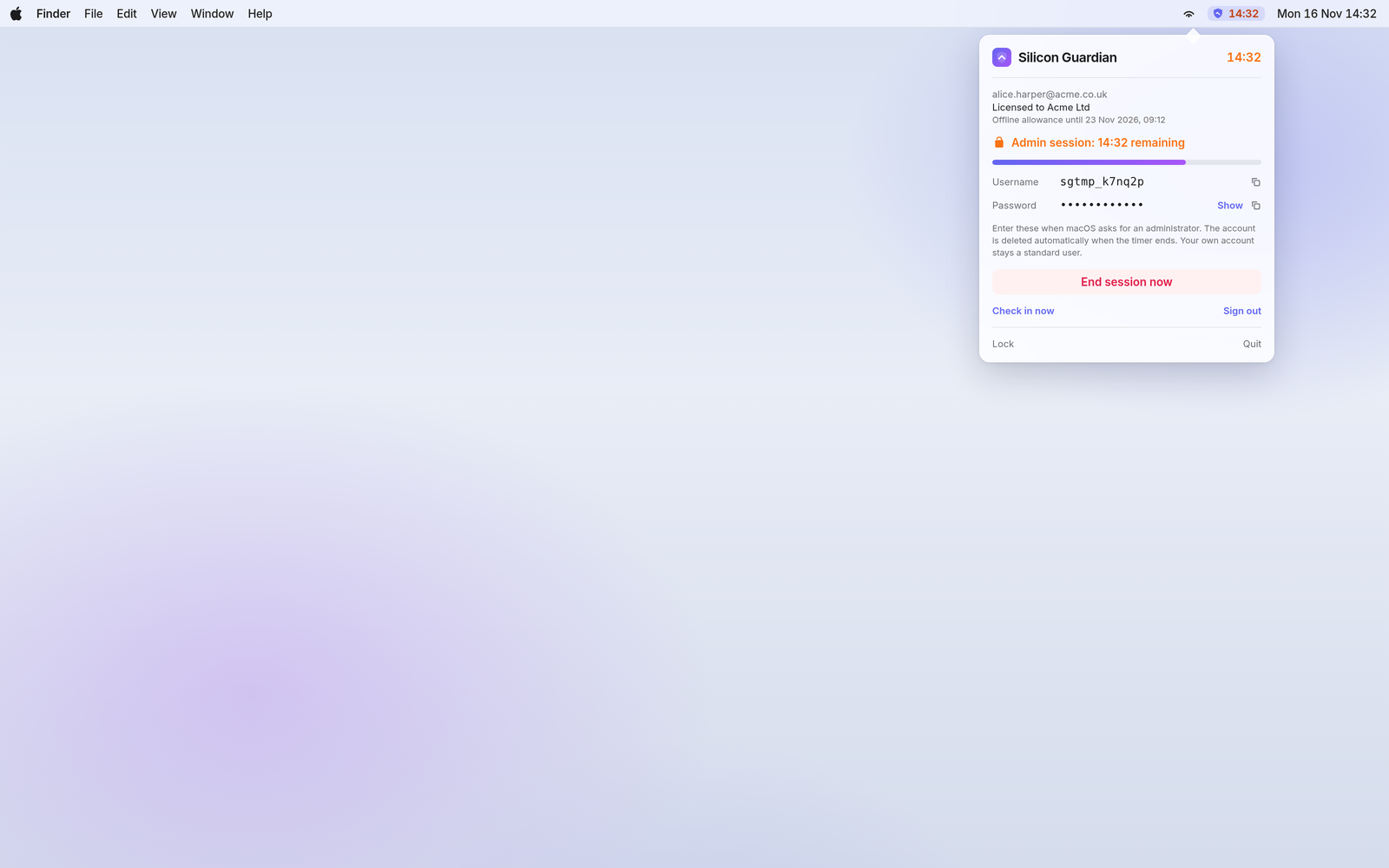
6. Check in, or work offline for up to seven days
The app checks in once a day, and after wake if it has been more than six hours, to renew the signed lease. If a Mac is offline, a valid lease still allows elevation for up to seven days. After that, the helper will not elevate until the Mac checks in again. Sessions taken offline are reported when the Mac reconnects.
If an admin unassigns the device or disables the user, the next check-in or session request returns a revoked response and the app wipes its credentials. Fully offline, that can take up to the remaining lease period.
7. Review sessions and the audit log
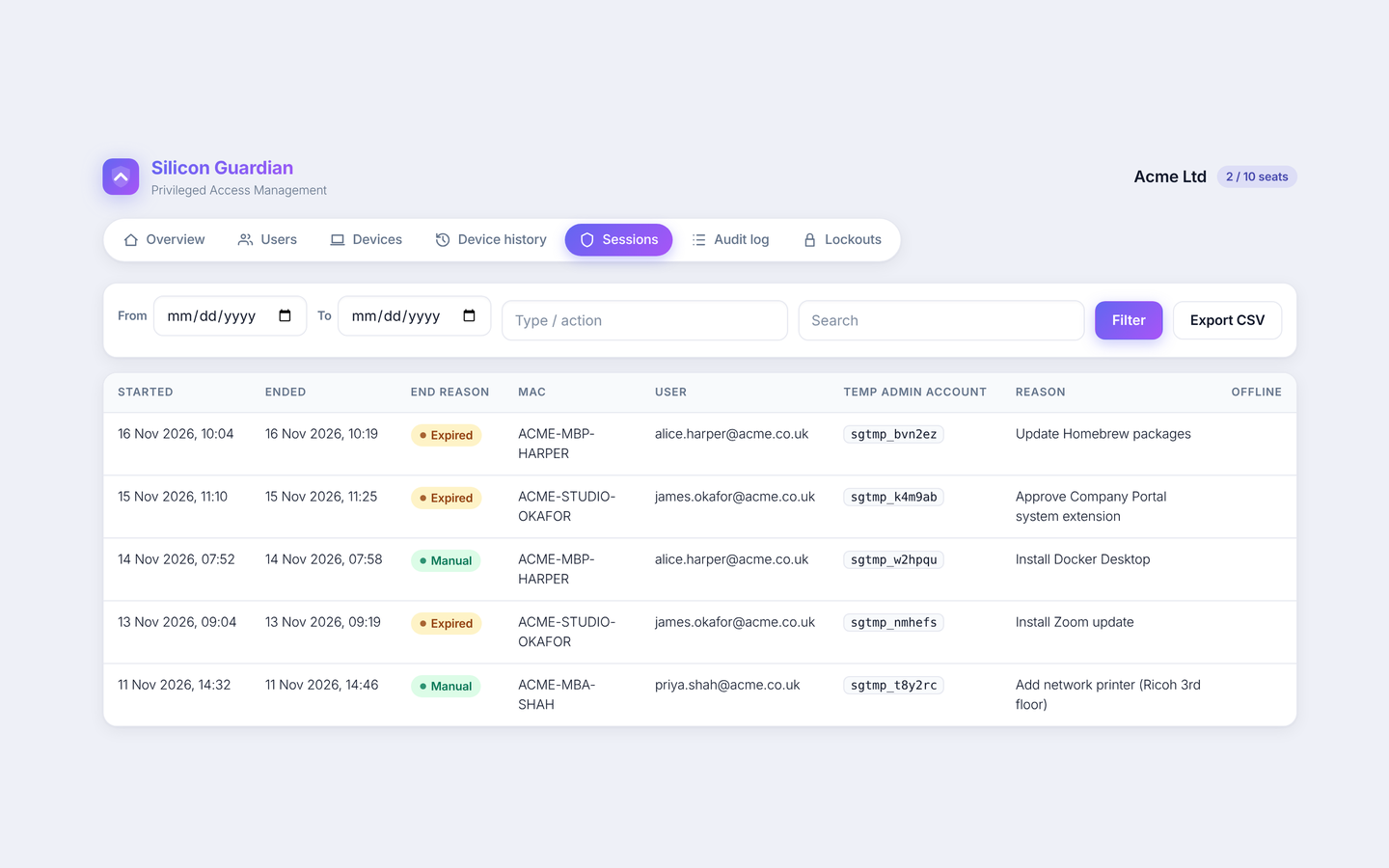
Organisation admins can see every elevation, the activity reported by each Mac, and an append-only audit log of administrative changes. Unassign a device to free its seat; the history stays on the device page.
Ready to try it with your team?
Start with 10 seats for £100 a year.